
Making a Payment to Your Student Account
Making a Payment to your Student Account
Once you log into your LORA Self-Service account, click theÌý"Student Finance"Ìýbutton to get to your student account homepage.Ìý
On the bottom right side click the link titled "Make a Payment". This will take you to our eCommerce site.
Once in your eCommerce account, click on theÌý“Make Paymentâ€�Ìýbutton highlighted in green.
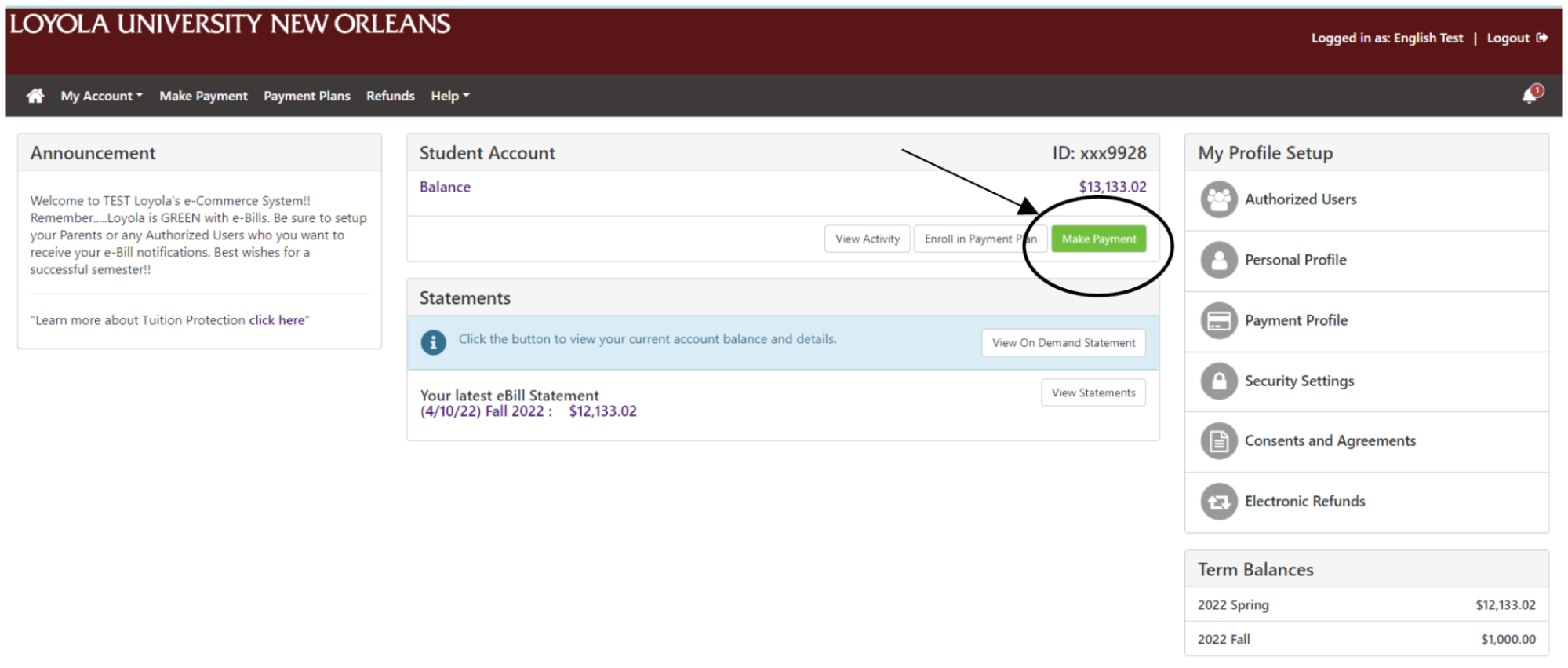
Ìý
Next,Ìýinput the amountÌýyou would like to pay for each term in which you have a balance. If you do not have a balance for a term, you will not be allowed to make a payment.

As you enter the payment amounts for each term, you will be provided aÌýPayment TotalÌýin the bottom right of the screen. You can make payments to one or more terms.

Ìý
Next, you will choose your account payment method using theÌý“Methodâ€�Ìýdrop down box. Notice that you will be able to pay with a credit card through PayPath, using a saved payment method, or with a checking or savings account. Once you have chosen your payment method, click theÌý“C´Ç²Ô³Ù¾±²Ô³Ü±ðâ€�Ìýbutton.

You will then be directed to insert your payment information.
Checking or Savings Account Payments
This is the information needed for paying with a new checking or savings account. Enter the information and click theÌý“C´Ç²Ô³Ù¾±²Ô³Ü±ðâ€�Ìýbutton.

You will be asked to review the information you entered and agree to the terms and conditions.

Review again and click theÌý“Submit Paymentâ€�Ìýbutton.

You will receive an account payment confirmation as well as the option to print a receipt. Click on theÌý“Printâ€�Ìýbutton to print or save a PDF of your payment receipt.

PayPath Credit Card Payments
If you choose to pay with a credit card through PayPath, you will be given this screen and asked to continue to PayPath. Click theÌý“Continue to PayPathâ€�Ìýbutton.ÌýThis service allows you to pay your tuition with a Visa, MasterCard, American Express or Discover.

You will be directed to the screen shown below to make a credit card payment in PayPath. Please note, the vendor charges a NON-REFUNDABLE service fee of 2.95% (or a minimum of $3.00) on all card payments.

Have Questions?
Contact the Bursar's Office at 504-865-2388 orÌýbursar@loyno.edu.